
If your smart fan isn’t responding, start by power cycling it—turn it off, wait 10 seconds, then switch it back on. Check your Wi-Fi or Bluetooth connections, making sure the device is within range and connected to a stable network. Keep your firmware updated via the app, as this fixes bugs and enhances performance. Reboot your router to reduce interference and improve network stability. For more tips, discover how to optimize your setup for reliable connectivity.
Key Takeaways
- Power cycle the fan by turning it off, waiting 10 seconds, then turning it back on to resolve minor glitches.
- Ensure Wi-Fi or Bluetooth is active, within range, and connected to a stable network for consistent communication.
- Check for and install firmware updates via the companion app to fix bugs and improve connectivity.
- Re-link the fan to your voice assistant or smart home app if voice commands aren’t responding properly.
- Reboot the Wi-Fi router and optimize its placement to reduce interference and enhance network stability.
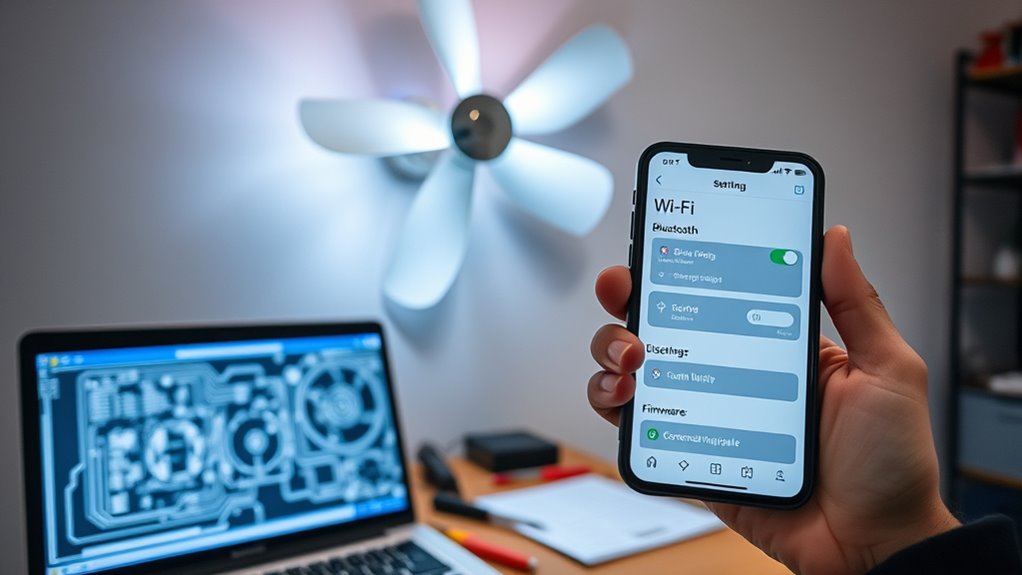
Smart fans offer convenient control and automation, but connectivity issues can disrupt their performance. If you’re relying on a voice command to turn your fan on or adjust its speed, a hiccup in the Wi-Fi or Bluetooth connection can leave you frustrated. Often, the simplest fix is power cycling the device—turning it off completely, waiting a few moments, then turning it back on. This process resets the internal network modules and often clears minor glitches that interfere with your fan’s ability to respond to commands.
When your smart fan isn’t responding to voice commands, check the connection first. Make sure your Wi-Fi or Bluetooth is active and within range. Sometimes, a weak signal causes the fan to drop offline or become unresponsive. If you notice the fan isn’t responding, try power cycling it. Disconnect it from power, wait about 10 seconds, then reconnect. This quick reset often restores connectivity and allows your voice assistant to communicate with the fan seamlessly again. If the problem persists, confirm your voice command system—like Alexa, Google Assistant, or Siri—is functioning correctly and that the fan is properly linked to your smart home app.
Another common issue stems from firmware glitches. Manufacturers periodically release updates to improve performance and fix bugs. If your smart fan isn’t responding correctly or drops offline frequently, check for firmware updates through the companion app. Sometimes, a simple update can resolve connectivity problems that prevent voice commands from working smoothly. Remember, keeping your device’s firmware current is vital for stable performance.
Wi-Fi interference can also cause intermittent connectivity issues. If your smart fan keeps disconnecting or becomes unresponsive, consider relocating your router or reducing interference from other electronic devices. Avoid placing the fan too far from your Wi-Fi router, and ensure your network is stable. If necessary, reboot your router as well—power cycling your networking hardware can often resolve underlying connectivity issues impacting your fan. Additionally, understanding the contrast ratio of your device can help you optimize your environment for better visibility and responsiveness.
Frequently Asked Questions
How Do I Reset My Smart Fan’s Network Settings?
To reset your smart fan’s network settings, start by performing a network reset. Usually, you can do this through the fan’s app or control panel, selecting the network reset option. If that doesn’t work, perform a factory restore by holding the reset button for 10-15 seconds until the device restarts. This will erase all settings, including network info, and restore your fan to its original factory state.
Can I Connect Multiple Devices to the Smart Fan Simultaneously?
Yes, you can connect multiple devices to your smart fan for seamless, simultaneous control—think of it as a symphony where each device plays its part. Most smart fans support multi-device pairing, allowing family members or colleagues to manage settings without a hitch. Just make certain the app or platform you’re using supports this feature, and you’ll enjoy effortless control from your smartphone, tablet, or voice assistant all at once.
What Should I Do if Firmware Updates Fail Repeatedly?
If your firmware updates keep failing, try performing a manual update or firmware rollback. First, download the latest firmware file from the manufacturer’s website. Then, follow the manual update instructions to reinstall it. If issues persist, consider rolling back to a previous stable version. This helps resolve bugs and restore functionality. Always confirm your device is connected properly and your internet connection is stable during the update process.
Is There a Way to Enhance Wi-Fi Signal Strength for the Fan?
To enhance your Wi-Fi signal strength for the fan, move your router closer to it or eliminate obstacles causing Wi-Fi interference. You can also use signal boosters or range extenders to improve coverage. Make sure your router’s firmware is up to date, and consider switching to a less congested Wi-Fi channel. These steps will strengthen your connection, reducing dropouts and ensuring smoother smart fan operation.
How Do I Troubleshoot Stubborn Bluetooth Pairing Issues?
Did you know that Bluetooth interference affects over 30% of pairing failures? To troubleshoot stubborn Bluetooth issues, start by resetting the pairing process—delete the device from your phone and fan, then restart both. Guarantee there’s no interference from other devices and keep your fan within close range. Retry pairing, and if issues persist, update your fan’s firmware to fix bugs causing connectivity problems.
Conclusion
Sometimes, resolving smart fan issues feels like a coincidence—just a simple reset or reconnect might do the trick. As you troubleshoot Wi-Fi, Bluetooth, or firmware glitches, remember that patience often leads to a breakthrough. You might find that turning off devices at just the right moment or updating firmware unexpectedly restores perfect connectivity. So, keep testing, stay curious, and you might be surprised how quickly your smart fan starts working seamlessly again.